Schulz Consulting

Consulting and Upgrades

  • Home
  • Services
  • Technical
    • Sage 100 New Features ( Brief )
  • Sage 100 Support

Sage 100 Paperless Office Output Options Defined

April 13, 2021 by Wayne Schulz

Sage 100 allows for a convenient way to send invoices, orders and statements via email. This occurs via their Paperless Office functionality which is part of Sage 100 and converts output to a PDF.

During the printing process you’ve likely noted the myriad of options that can be selected for paperless office output.

  • Print All
  • Electronically Deliver Only
  • Print/PDF for Print Delivery Option
  • Print/PDF All and Electronically Deliver
  • Print/PDF or Electronically Deliver
  • Print/PDF All
  • PDF All

What exactly are these options and how do they impact your document flow?

Sage has a knowledgebase article which reviews each of these options and provides guidance on exactly what they do.

Although this article pertains to the options in Employee and Customer Maintenance, you’ll notice the information also applies to options presented when you print a form and Paperless Office is enabled.
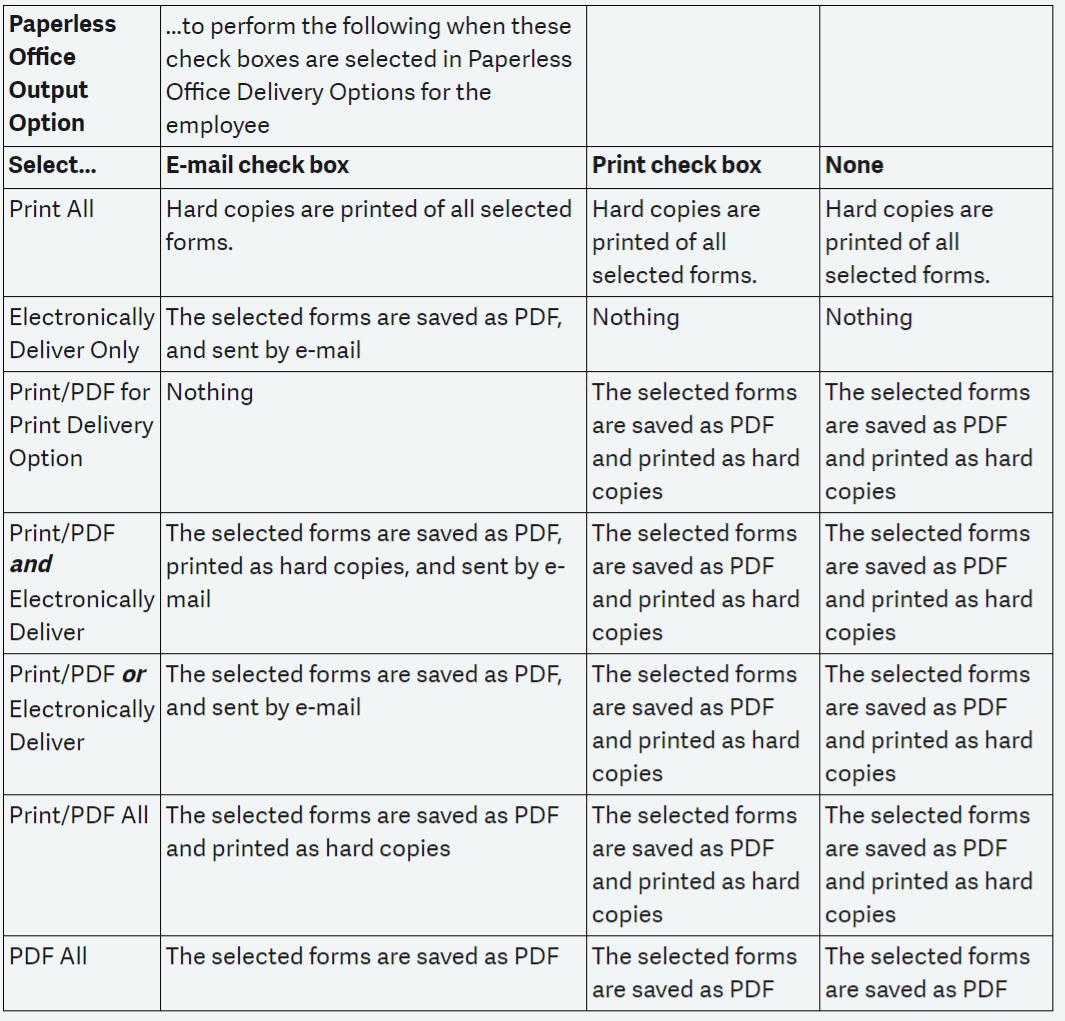
There are a number of other items that this knowledgebase article points out which are important considerations when using Paperless Office.

Settings on this screen will not be retained when using the STANDARD form. If you want to retain the settings, create a new form code.

If Paperless Office does not email customer or vendors forms but no error is displayed:

You can use the Paperless Customer/Vendor Viewer to confirm PDF Exists = Y, and Sent = Y.

If PDF Exists = N then confirm that a Paperless Office Output option (such as Print/PDF and Electronic Delivery) is chosen when Printing.

For more information and to read the full Sage KB article visit – What Paperless Office Output Options are available for customer or vendor forms?

Filed Under: Sage 100 ERP Tagged With: sage 100

Eight Tips for Speeding Up Sage 100

March 22, 2021 by Wayne Schulz

We’ve heard from some users that after upgrading Sage 100 to version 2020 that they’ve experienced slower performance.

Slow performance can be cause by many things ( see below for a list of the top 8 reasons your Sage 100 might be slow ).

In many instances the slowness of a new Sage 100 upgrade can be traced back to overly aggressive anti-virus or malware scanners causing interruptions in processing.

The suggestions below may ( or may not ) help speed up your Sage 100 system. Prior to calling support I recommend walking through each and seeing if they might apply to your particular installation.

  1. Change the default printer to another physical or network printer and then test/check the performance
    1. Sage 100 Advanced and Premium looks at the default printer on the server every time a task is launched.
    2. Sage 100 Standard edition checks the workstation’s default printer.
    3. Make sure all Network Printers are on-line
    4. If a Network Printer is off-line and no longer needed, remove it from Control Panel, Devices and Printers
  2. Check the path
    1. For Sage 100 Standard, Workstation Setup should be installed from a mapped drive letter path, such that the shortcut to launch Sage 100 also has the mapped drive letter path. The drive letter must be mapped to a directory above “MAS90”
    2. For Sage 100 Advanced or Premium, Workstation Setup should be installed from a UNC path, such that the shortcut to launch Sage 100 also has the UNC path. The UNC share point must be a directory above “MAS90”
  3. Check that the latest Sage Anti-Virus setting exclusions have been applied
  4. Consider temporarily disabling anti-virus and malware scans
    1. This is trickier than it should be – and may require uninstalling and rebooting the server
  5. Consider setting Sage 100 so that the shortcut always “runs as administrator”
  6. Check ping times for Advanced/Premium
    1. PING servername -l 1800 ( Note the -l is lowercase letter L ) 
    2. Anything over 40 ms is slow and may be cause for further investigation
  7. Turn off the Sage Product Enhancement Program
    1. Login to Sage as Administrator
    2. Select Sage Product Enhancement Program
    3. Deselect “Participate in the Program” by removing the checkmark
  8. Never run Sage over WiFi without use of RDP or Terminal Server/Citrix
    1. Customers may refer to this as “using a VPN” but the VPN does NOT act as a remote desktop
    2. Customers running solely over WIFI or the Internet with RDP will see most pronounced slowdowns in printing

All information was drawn from this Sage KB article – Slow performance when opening a new task or starting Sage 100, or when running Sage 100 across a network

Filed Under: Sage 100 ERP, sage 100cloud Tagged With: performance, sage 100, speed, upgrade

Sage 100 Files to Exclude from Antivirus Scanning

March 2, 2021 by Wayne Schulz

No matter how fast your computer system hardware may be there is always room for improvement. One way that Sage 100 users have found to improve the speed of their accounting software is by excluding certain Sage 100 files from scanning by antivirus software.

Be sure you consider all anti-virus and malware applications. In at least one case we’ve had a user who added exclusions ( as suggested by Sage below ) and found that Windows Defender was also running on the server and once exclusions were added to Windows Defender their slow speed problems vanished.

Sage has a published list of the files and file extensions which may normally be excluded from scanning by antivirus software.

Since these file extensions are specific to Sage 100 there is a small risk of infection which leads Sage to recommend their exclusion.

There is a Sage knowledge article available online – How to exclude Sage 100 from antivirus scans.

The article recommends the following antivirus expulsions which may speed up the processing of Sage 100.

In general these exclusions should happen on both the server and workstation.

Update 3/2/2021

Consider testing by temporarily disabling your antivirus product to see if this improves performance: speed, file locking problems encountered, error messages, etc.

If performance improves, exclude the Sage 100 programs, folders, and file extensions from your Antivirus program:

In your Antivirus product ( To ensure you have the latest info please verify the list below against this official Sage KB article prior to making changes ):

  • Disable any aggressive or continuous (also known as on-access, constant, or real-time, or “network scanning“) monitoring or scanning of Sage 100 (formerly Sage MAS 90 or 200) programs if they exist:
    • “..\MAS90\Home\Pvxwin32.exe“
    • “..\MAS90\Home\pvxiosvr.exe“
    • “..\MAS90\Launcher\Launch32.exe“
    • “..\MAS90\Launcher\Launcher.old.exe“
  • Exclude the “..\MAS90” directory and sub-directories and contents on the server where Sage 100 is installed.
    • Note: Do the same for the workstations, if using Sage 100 Advanced or Premium editions (formerly Sage MAS 200 and Sage MAS 200 SQL editions)
  • Exclude the following file extensions:
    • AUC, DCL, DD, DDE, DDF, EXP, LCK, LIB, KDF, M4D, M4L, M4P, M4T, M4X, PRM, PVC, PVX, RPT, SOA, XEQ
  • Spa.NA.Com must be a trusted site

Note: It is okay to run nightly scans when users are out.

We advise that you consult with your IT staff prior to making any exclusions. Never disable your antivirus or malware scanners without understanding the risks involved.

Filed Under: Sage 100c, sage 100cloud Tagged With: antivirus, malware, sage 100

WFH Tip For Sage 100: Go Paperless

February 24, 2021 by Wayne Schulz

If your workflow is now like that of many companies you probably have most or all of your staff working from home.

When your staff is working in Sage 100 they are likely printing and updating journals and registers as they go about their regular workday.

These registers require paper and if you are manually printing and requiring staff to come into the office to later file the journals and registers – you are working too hard.

Sage 100 includes a feature called Paperless Office. It’s essentially taking all those journals and registers and automatically saving them as PDF files in a location determined by you.

What’s nice about this feature is that once enabled it automatically saves a copy of the output no matter whether your staff tries to send it to a printer or manually creates a PDF.

Sage has a set of detailed instructions online. These only look complicated as the actual setup is fairly straightforward.

If you decide to setup Paperless Office in Sage 100, here are a couple quick tips.

  • Create a common storage location which will survive upgrades. Don’t embed the saved paperless documents inside the \MAS90 folder or you’ll need to move them ( or keep that old folder ) with each upgrade.
  • Usually what we do is create a folder \acct then inside there have a folder \v20xx for the actual Sage 100, also a \acct\Paperless folder which holds the paperless documents.

That’s it. It’s very easy to automatically saved copies of your journals and registers to PDF automatically which will save your staff from having to manually file those documents.

With a little more setup effort you can also email out invoices using paperless. Some third-party credit card processors also support embedding links inside the invoices so your Sage 100 customers can pay directly from the invoice.

Previously we’ve had some customers dismiss paperless office as an unnecessary step. Now with more companies adjusting to working from home this handy feature is not only included in your product but can provide a very real return on your Sage 100 investment.

Filed Under: Sage 100 ERP, sage 100cloud Tagged With: paperless, sage 100

When is Sage 100 2021 Due for Release?

February 19, 2021 by Wayne Schulz

The latest Sage 100 version 2021 is slated for release on April 21, 2021. This new release offers customers 29 new features, including security and communications enhancements, to improve record-keeping capabilities, expand email options, and much more!

Sage has adhered to what they call an N-2 strategy for support. This means that the current release and two immediate releases are supported by Sage.

Do You Need To Upgrade Immediate?

In most cases companies wait 1 to 3 months before upgrading to the latest release. How long you should wait depends on the complexity of your Sage 100 system.

If you have multiple third-party integrations or enhancements then you may have little choice but to wait until all those enhancements are available for the most current Sage 100 release.

Although Sage officially supports a total of three versions you might find the support for the current and one immediate release also include product updates which are bundles of fixes ( and sometimes enhancements ) .

Where Can I Find More Information About Each New Release?

Sage maintains a site containing the latest what’s new and administrator guides for each version of Sage 100. This site may be accessed without any need to login and is something you should bookmark for future reference.

Click here for Sage 100 Reference Site – New Release Guides, Installation Instructions, etc.

Filed Under: Sage 100 ERP, Sage software Tagged With: sage 100

  • « Previous Page
  • 1
  • …
  • 6
  • 7
  • 8
  • 9
  • 10
  • …
  • 44
  • Next Page »

Sage 100 Newsletter

Search Our Site

Sage 100 News

  • How to Fix: Sage 100 Desktop Launcher Closes Immediately After Login (No Error)
  • How To Update Sage Intelligence Keys as Sage Moves Away From Unlimited Licenses
  • Get More From Your Sage 100 Partnership
  • Sage Future 2025 Preliminary Agenda Released
  • Upgrading Sage 100 to 64-bit: Avoid These Integration Pitfalls
  • What’s New in Sage 100 2024? ( Video )
  • Sage 100 Users: Conquer Minnesota’s New Sales Tax & Delivery Fee Headache-Free
  • Elevate Your Sage 100 Expertise with SchulzSays: The Ultimate Newsletter for Users and Consultants
  • How To Purge Cleared Bank Reconciliation Transactions in Sage 100
  • 10 Exciting New Features in Sage 100 2024

Contact Us

Schulz Consulting · Connecticut Office · Available remotely nationwide.

Contact Schulz ConsultingPhone: 860-657-8544Email Us

We are a local branch of DSD Business Systems Connecticut.

Copyright © 2026 · Parallax Pro Theme on Genesis Framework · WordPress · Log in

Loading Comments...

You must be logged in to post a comment.